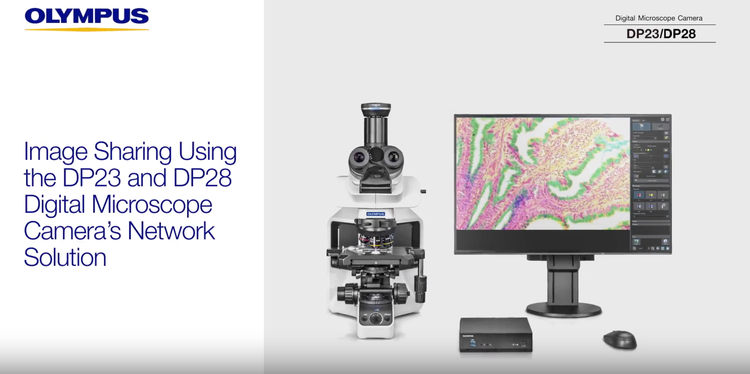
DP28 Color Camera
8.9 Megapixel CCD Color Camera. 64 frames per second (fps) full HD live images, 4K resolution at 32 fps. Global shutter. Fits standard c-Mount. USB 3.1 Gen1 (compatible with USB 3.0). Includes cellSens Entry imaging software. *Requires c-mount and 0.5-1.0X adapter (0.5X recommended)
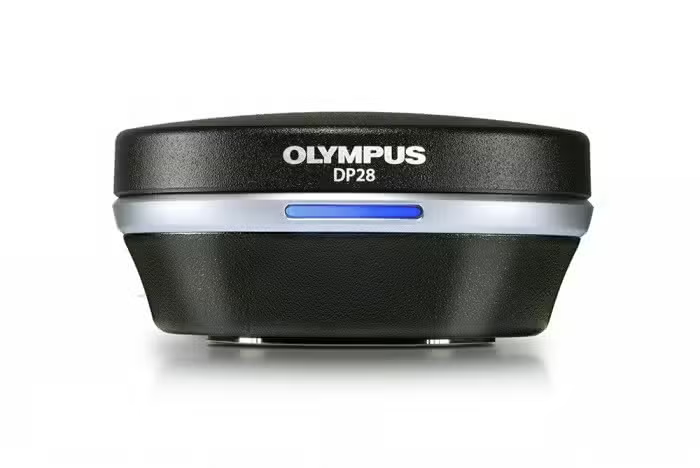
DP28 Microscope Digital Camera
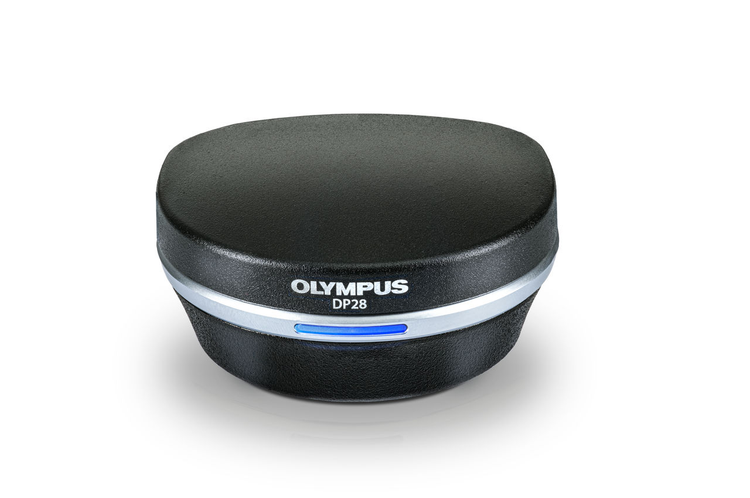
Microscope Camera for Conferencing, Teaching, and Clinical Research
The DP28 digital microscope camera combines powerful features, precise color accuracy, and 4K resolution across a wide field of view to provide stunning images for conferencing, teaching, and clinical research. With smart features, the camera eases and accelerates your microscopy tasks while delivering high image quality.
4K Ultra-High-Definition Onscreen Images
The images on your screen look exactly as they appear through the microscope’s eyepieces.
- 8.9-megapixel CMOS sensor, global shutter, and 4K resolution at 32 frames per second (fps)
- Smooth live images with no distortion
- 64 fps full HD live images
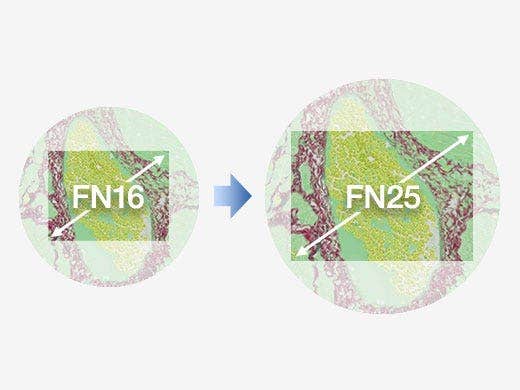
Microscope Camera with a Large Field of View
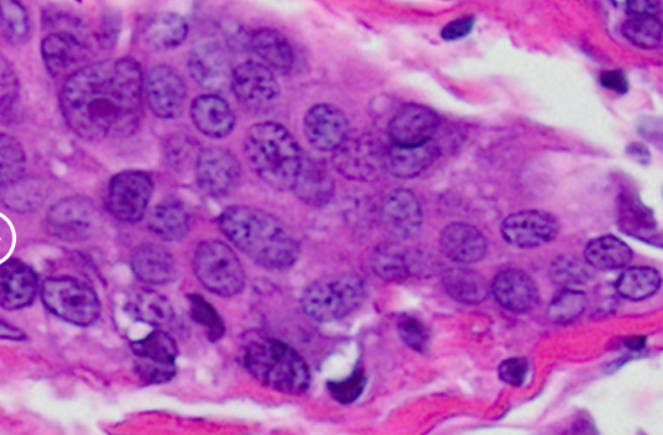
With a large field of view (FOV) up to FN25, see and capture more of your sample with images that are sharp, flat, and in focus from the center to the periphery. Pair the camera with Olympus’ X Line objectives and a 0.63X camera adaptor designed for a wide FOV to leverage the power of the camera’s 1-inch image sensor.
* Your microscope system must be compatible with an FN25 FOV.
Improved Color Performance
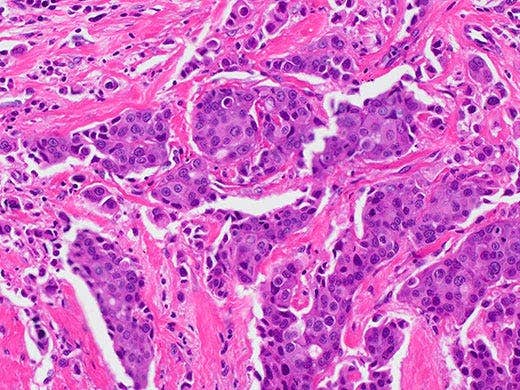
The DP28 camera realizes good color reproduction and color balance on your monitor.
- Dedicated ICC profiles show your samples in their natural colors
- Common life science dyes look the way you expect them to
- Use the camera with Olympus’ True Color LED and BX53 microscope for a complete color-optimized system
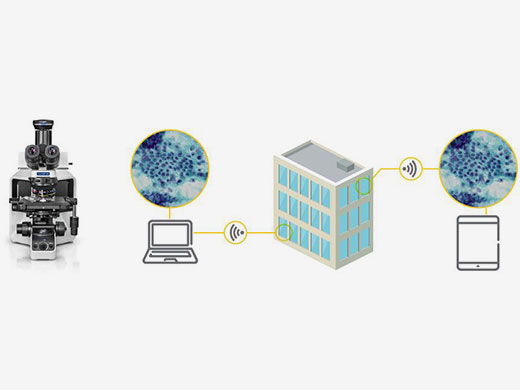
Easily Share Microscope Camera Images
Make your collaborations more efficient. All your critical data—images, annotation, and live measurements—can be easily displayed and shared together locally or remotely.
Share images and data using cellSens software with the NetCam solution or remote image sharing feature* with the standalone camera control module
Single click to start image sharing
Support for NIST, GDPR, and antivirus software* for safer sharing
* Remote image sharing and antivirus software are optional.
The DP28 is not for clinical diagnostic use.
Applied Technologies
Easily Capture Digital Microscope Images
- Olympus Smart Image Averaging (OSIA) suppresses noise and eliminates artifacts while maintaining a fast frame rate
- Focus peaking helps you identify which sample regions are currently in focus
- High contrast mode enables easier image acquisition with a high signal-to-noise ratio so that you can capture high-quality images from dim samples during polarization and fluorescence microscopy
- Fast live function provides a consistently high displayed frame rate during long-exposure imaging
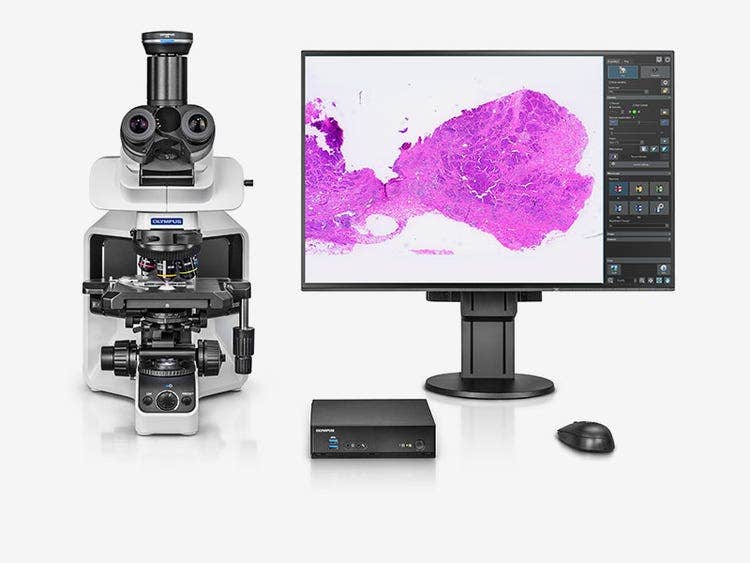
Simple-to-Use Camera
- Thoughtfully designed software enables you to acquire images with just a single click for an efficient workflow
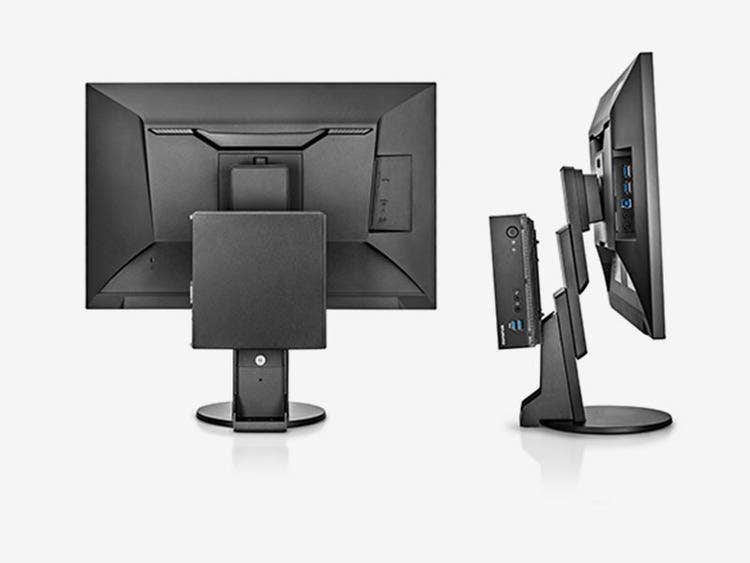
- Attach the camera’s standalone module to the back of your monitor to free up valuable desk space
- Plug the camera into your computer’s USB 3.1 port*, and it’s ready to use—no separate AC adaptor required
* USB 3.1 Gen is compatible with USB 3.0.
Specifications
Max.33 fps at 3840 × 2160 (4K)
Max.33 fps at 2168 × 2168 (Square)
Max.64 fps at 1920 × 1080 (Full HD) *1
Windows11 Pro(64bit)
CPU: Intel® Xeon, Intel® Core i5, i7, i9
RAM: 8GB
Recommended:
- 6 or more physical CPU cores
- 16GB RAM (8GBx2: dual channel)
*1 Frame rate may decrease depending on the condition of your PC and/or software. It is recommended that you use a dual-channel memory configuration for your PC.
*2 USB 3.1 Gen1 is compatible with USB 3.0
Microsoft and Windows are registered trademarks of Microsoft Corporation in U.S. The terms HDMI and HDMI High-Definition Multimedia Interface, and the HDMI Logo are trademarks or registered trademarks of HDMI Licensing Administrator, Inc. in the United States and other countries. All brand names or production names described on this web site are trademarks or registered trademarks of relevant owners.
List of compatible PCs for DP28
* These were tested using cellSens software.
✔: Available, -: indicates that the operation in combination with PC is not confirmed yet.
TestedPC
Colspan=4
Result
Colspan=8
Desktop
Rowspan=2
Laptop
Rowspan=3
*1: DP73 and DP80 do not support the Kernel DMA Protection function of Windows10 and Windows11.
When using DP73 or DP80 on Windows10 and Windows11, disable Kernel DMA Protection in [BIOS Settings] on your PC before use.
Kernel DMA Protection (The procedure to check the status of Kernel DMA Protection is included.)
https://docs.microsoft.com/en-us/windows/security/information-protection/kernel-dma-protection-for-thunderbolt
How to disable Kernel DMA Protection (When using HP EliteDesk 800 G6 TWR, the setting procedure differs depending on the manufacturer and model. For other PCs, please contact respective manufacturer.)
- Start the system.
- Press the [ESC] key or the [F10] key immediately after starting the system. Startup Menu appears. (If you press the [F10] key, the [BIOS settings] window appears. Go to Step 4.)
- Press [BIOS Setup] (F10).
- Select [System Options] in [Advanced].
- Uncheck the [DMA protection] checkbox.
- Press the [F10] key to save the settings and exit the system. When "Save Changes?" appears, select "Yes".
* All brand names and product names are registered trademarks of their respective companies.
* The results described above do not provide any guarantees on the operation.
* When using the above notebook PC in combination with DP75, USB Type A to C conversion adapter compatible with USB3.1 Gen2 is required.