请在线激活您购买的许可证,以使用 cellSens FV 成像软件及其可选功能,或 cellSens FV Desktop。进行激活操作时,必须提供许可证密钥和系统 ID。许可证密钥写有在您购买的产品所附的许可证书上。
许可证激活
1. 激活前
请在激活许可证之前,在 PC 上安装 cellSens FV 或 cellSens FV Desktop。
2. 获取系统 ID
1) 以管理员权限运行下列文件夹中的 LicenseManagementTool.exe。
C:\Program Files\ESS\cellSens FV\tools
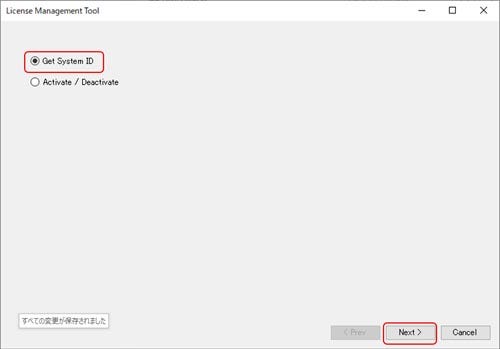
2) 当许可证管理工具窗口显示时,选择“获取系统 ID”,然后点击“下一步”按钮。
- 系统 ID 显示后,请将其记下或复制,并用记事本保存为文本文件。
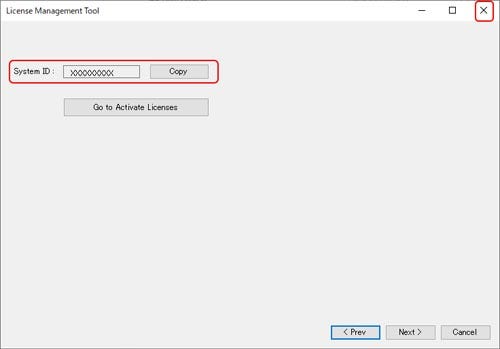
4) 点击“X”按钮关闭许可证管理工具。
3. 获取激活密钥
1) 启动互联网浏览器并连接到以下网址。
网址:https://act.evidentscientific.com/activate/entry
2) 当激活许可证页面显示时,输入系统ID和许可证密钥,然后单击《提交》按钮。
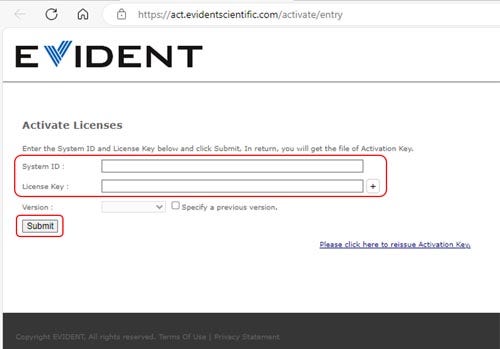
* 版本复选框会自动显示最新版本,除非您想指定以前的版本,否则无需选中该框
* 如果您购买了多个许可证,可以同时激活多个许可证密钥。 点击许可证密钥字段右侧的《+》按钮以新增一个输入栏。 最多可以同时激活 10 个许可证密钥。
*请注意以下事项,在同时激活多个许可证密钥时。
- 不同产品系列的许可证密钥不能同时激活。
- 请勿同时激活同一产品的基础许可证和升级许可证。
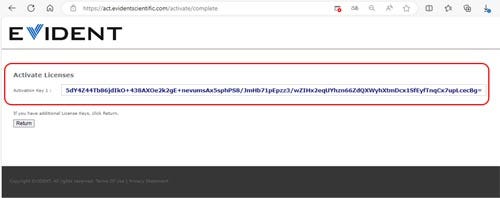
3) 激活密钥已显示。 点击《保存》以保存激活密钥。
当《保存》未显示时,请复制激活密钥,并用记事本将其保存为文本文件。
4. 激活
1) 以管理员权限在以下文件夹中运行 LicenseManagementTool.exe。
C:\Program Files\ESS\cellSens FV\tools
C:\Program Files\ESS\cellSens FV\tools
2) 当“许可证管理工具”窗口弹出时,选择“激活/停用”,然后点击“下一步”。
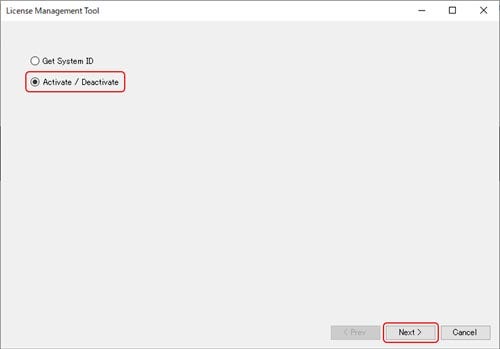
3) 单击“激活”按钮。
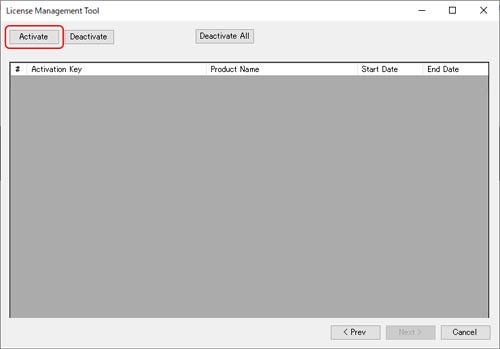
4) 出现激活窗口。 点击《选择激活文件》按钮,选择您在步骤 3-3 中保存的激活文件。
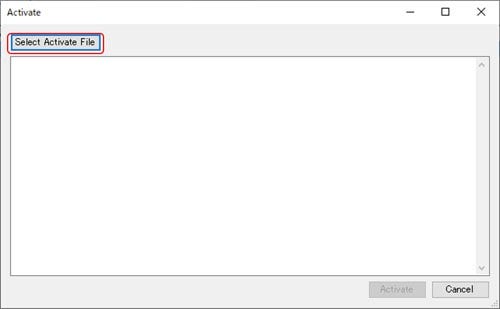
5) 系统将显示所选文件的内容。 单击“激活”按钮。
6) 请确认相关许可证已显示在许可证管理工具窗口中。
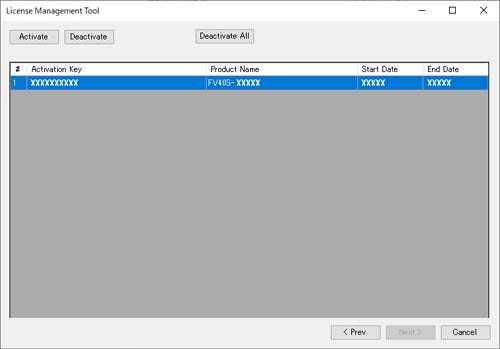
7) 单击“X”按钮关闭许可证管理工具。
许可证停用
• 如需更换要使用的 PC,需先在当前 PC 上停用许可证,然后在新 PC 上激活该许可证。
• 需要持有产品附带的许可证密钥,以及新 PC 的系统 ID。 许可证密钥记录在您购买的产品所附的许可证书上。 有关获取系统 ID 的流程,请参阅上一个激活流程中的第 2 步“获取系统
1. 停用
1) 以管理员权限在以下文件夹中运行 LicenseManagementTool.exe。
C:\Program Files\ESS\cellSens FV\tools
2) 当“许可证管理工具”窗口弹出时,选择“激活/停用”,然后点击“下一步”。
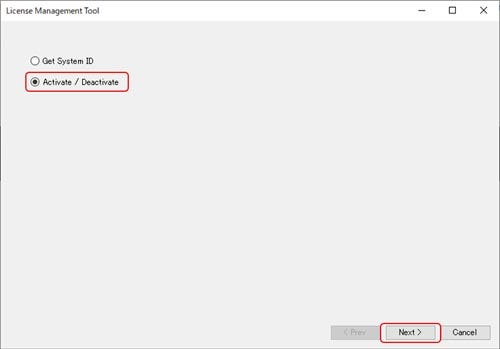
3) 当显示已激活许可证列表时,选择要停用的许可证,然后单击“停用”按钮。
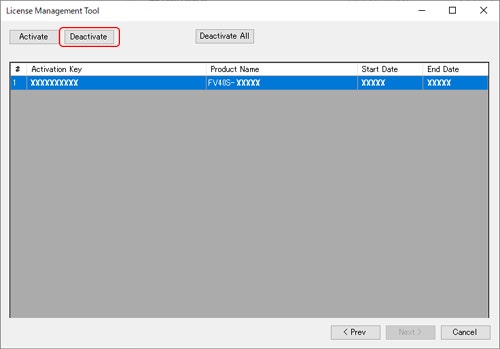
4) 当确认对话框出现时,单击“是”按钮。
5) 出现设置停用密钥输出目的地的窗口时,指定输出路径和文件名,并点击“保存”按钮。
* 必须使用停用密钥才能在另一台电脑上重新激活许可证。
6) 单击 X 按钮关闭许可证管理工具。
2. 重新发行激活密钥
1) 打开互联网浏览器并连接到以下网址。
网址:https://act.evidentscientific.com/reactivate/entry
2) 当显示“重新发行激活密钥”页面时,输入新 PC 的系统 ID、许可证密钥,以及在停用步骤 1–5 中保存的停用密钥,然后单击《提交》按钮。
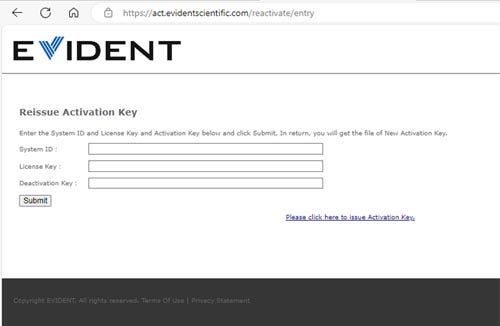
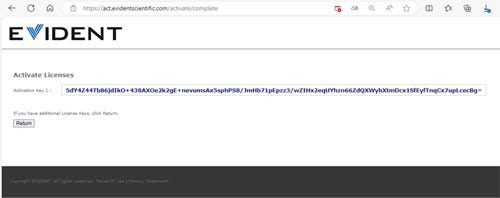
3) 激活密钥会显示出来。 点击《保存》以保存激活密钥。
当《保存》未显示时,请复制激活密钥,并用记事本将其保存为文本文件。
3. 重新激活
1) 在新电脑上激活许可证。
* 有关激活流程,请参见《许可证激活流程》第 4 步“激活”。