本软件是用于 fluoview™ FV5000、FV5000MPE、FV4000 或 FV4000MPE 激光扫描显微镜(配备 cellSens™ FV 成像软件版本 4.1.1)的固件更新。使用本软件时,cellSens FV 版本 4.1.1 必须预先在 FV5000、FV5000MPE、FV4000 或 FV4000MPE 系统的控制 PC 上安装。

要确认 cellSens FV 软件的版本,请按照以下步骤操作:

1) 启动 cellSens FV 软件。

2) 从帮助菜单中选择《关于 cellSens FV》。
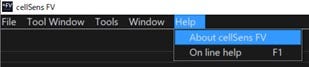

Select “About cellSens FV” from the Help menu

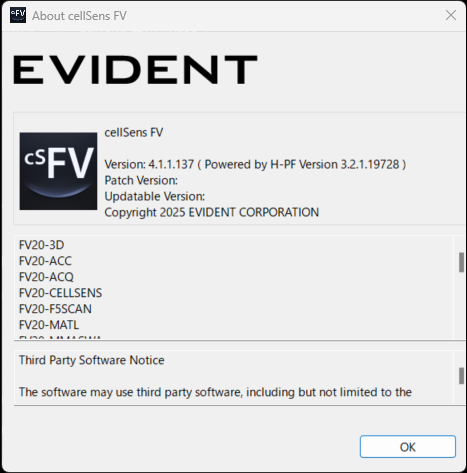
3) 在“关于 cellSens FV”窗口中确认版本。

请确认当前软件版本为 4.1.1.137。如果版本不同于此,则本固件更新不适用。

安装

1) 打开 Fluoview 系统的控制 PC 和 FV40-PSU 的电源。

2) 关闭所有应用程序。

3) 将下载的文件保存在电脑上的适当位置(如桌面等)。

4) 解压下载的文件。

5) 以管理员权限执行解压后的文件夹中的更新程序(exe 文件)。

6) LSM Updater 窗口将会显示。
请打开所有系统的电源,使“开始更新”按钮可用。
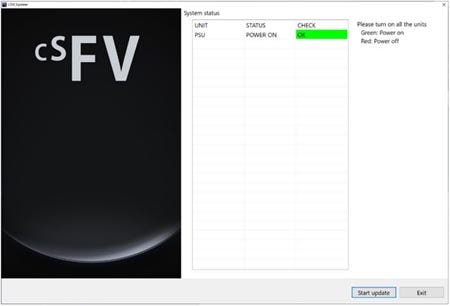
The LSM Updater window appears. Turn on the power of all systems and enable the Start update button.

7) 单击《开始更新》按钮。
将显示更新所需的预计时间。
单击《是》按钮以开始更新。
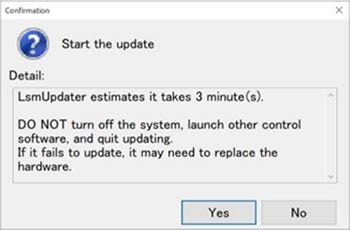
Click the Start update button. The estimated time required for updating is displayed. Click the Yes button to start updating.

8) 更新完成后,将显示以下对话框。单击“确定”按钮。

After updating, the following dialog box will display. Click the OK button.

9) 将显示以下对话框。 根据提示信息操作,并关闭所有系统和控制电脑的电源,以完成更新程序。然后,重新打开电源。
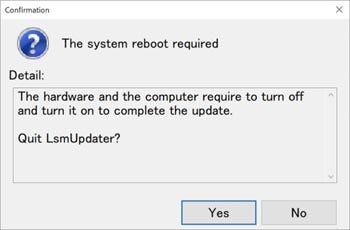
The following dialog box will display. Finish the updater by following the message and turning off the power of all systems and the control PC. Then, turn on the power again.

注意:不能通过重新启动操作系统来正确更新固件。需要彻底关闭控制 PC 的电源。

10) 更新程序自动启动。
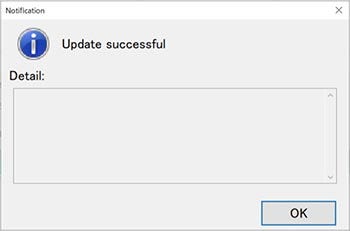
出现“更新成功”消息时,单击“确定”按钮。
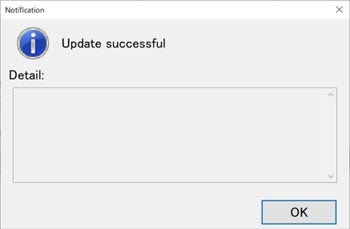
The updater starts automatically. When the message “Update successful” appears, click the OK button.

※ 如果出现“更新失败”消息,请点击“是”按钮。然后,更新程序将启动并再次重复步骤 6 至 10。
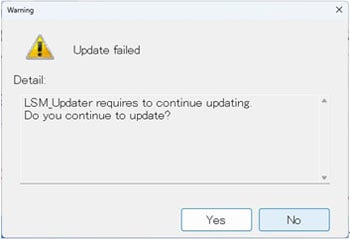
If the message Update failed appears, click Yes button. Then, the updater will start and repeat steps 6 to 10 again.

※ 如果出现“更新错误”提示,请点击“确定”按钮。接下来,重复步骤 5 至 10。
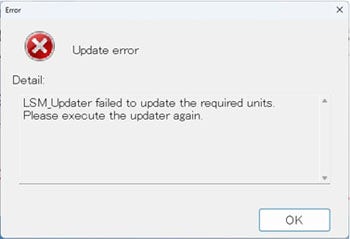
If the message Update error appears, click the OK button. Then, repeat steps 5 to 10 again.

※ 如果出现“硬件访问错误”消息,请关闭所有系统的电源,然后仅打开 PC。 下来,仅重新启动操作系统。之后,打开 FV40-PSU 的电源,等待硬件初始化完成。然后,请重复第 5 至第 10 步。
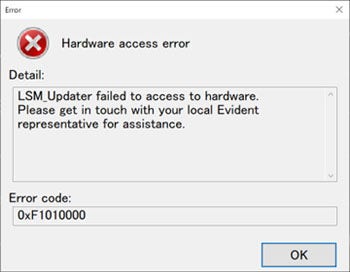
If the message “Hardware access error” appears, turn off the power of all systems, then turn on only the PC. Next, restart only the OS. After that, turn on the power of the FV40-PSU and wait for the hardware initialization to complete. Then, repeat steps 5 to 10 again.